Showing posts with label Tuesday Tech Tip. Show all posts

Tuesday, October 22, 2013

Hour of Code

I got this email from Code.org:
Yesterday, we announced the Hour of Code: a movement to recruit 10 million students of all ages to try computer science for one hour. This will be the largest initiative of its kind, ever.
Backed by Microsoft, Google, Apple, Bill Gates, Mark Zuckerberg, the Boys & Girls Clubs, and over 100 other partners, we want to bring computer science to every child, in every school, during Computer Science Education Week (Dec. 9-15).
Welcome to the 21st Century
Computer science is foundational for all students today. Yet 90% of schools don’t teach it. Fewer kids learn to program than 10 years ago.
What’s an Hour of Code?
It’s an introduction to computer science designed to demystify code and show that anyone can learn the basics. We’ll provide hour-long tutorials featuring Mark Zuckerberg, Bill Gates, Angry Birds, and Plants vs. Zombies -- for your computer, tablet, or smartphone.
How can you help?
1) Ask your local school to participate - share this handout and video with your teacher.
2) Participate yourself (or with your child). Set aside one hour to learn, during Dec. 9-15.
3) Ask your employer to schedule a 1-hour team-building event to learn together.
4) Get together a local group in your community. Or host an Hour of Code "block party."
No experience needed
We owe it to today’s students to start with one hour. Let’s make history.
Please get started now at http://hourofcode.com
- Hadi Partovi, founder, Code.org

Tuesday, October 15, 2013

Bookmarking Tools

There are some great tools for online bookmarking.  Try one of these out:
  1. my.uen - has a bookmarking tool where you can save your favorite websites and then publish them on your public page if you choose
  2. diigo - social bookmarking and highlighting
  3. delicious - social bookmarking and sharing
  4. symbaloo - visual bookmarking. There is also a special edu version http://www.symbalooedu.com
  5. google.com/bookmarks - Chrome keeps your bookmarks in sync across devices, but Google Bookmarks allows you to access them on whatever browser you are on and also allows you to share them.
  6. Pinterest - Visual bookmarking and can be unsafe for work but there are some great education Pin Boards too.
  7. Pearltrees - Another visual bookmarking and mind mapping tool
Where are you saving bookmarks and sharing bookmarks?

Tuesday, September 24, 2013

Scan it

In our modern day and age it is becoming ever more useful to get rid of paper.  Recently I have been using a tool that I love.  We upgraded our copy machine with a module that allows it to send PDF files instead of just making paper copies.  I have gone through over 2000 pages of old materials and scanned them in as PDF's.  Some of these are materials that I could probably find doing a Google Search or using Pioneer Library to look through old Journals and Magazines, but in this case I had taken notes on items and had handwritten notes to go along with them.  Most of these I haven't referred to for a while but they still matter to me so I wanted to keep them available. This new add-on on the copier has been a wonderful tool and allowed me to scan multiple sheets all at once.  It even does double sided and larger sized documents.  Our system was about $200.00 to add on to the current copier we had.  This is relatively inexpensive for a scanner that can be shared by all who have access to the copier.


There are other ways also, there are several apps that allow a Smartphone to take a snapshot and turn it into a PDF.  I have talked about that in a previous post but you can also do a search in your favorite App store to find and compare them.

Tuesday, September 3, 2013

Cloud Features you didn't know about.

I am not always a fan of countdowns, but here are 9 cloud features you may not know about and could be hugely helpful:
  1. Cloud Favorites.  For Android, and iOS users your favorite browser can keep your favorites together.  When you sign in to the Chrome Browser your favorites are kept in sync.  The same is true of Safari.  An iPad user with a Windows computer, never fear Safari is available for Windows and is an option when you download iTunes. Added Bonus: When you are logged in to two devices on Chrome or Safari you can open tabs that are open on other devices.
  2. Photo Storage: When you turn on PhotoStream on iOS devices it allows you to see and then download to your device photos taken on other devices.  For example if I snap a shot with my iPhone I can see it and edit on my iPad and then share it to Facebook from my computer.  Similar to this is Google+ this app on iOS devices allows you to choose to upload your photos automatically as a backup.  Every photo you take is added to a private folder that allows you to share to Google+.  If you are an Amazon fan their app will automatically back up photos also.
  3. Notes - There are several services that will keep notes in sync.  Apple's Notes does this with iCloud, but also if you enable the feature with other accounts it will let you store notes in a Google account or an Exchange account. Others include Catch notes and Evernote.
  4. Music - Apple has a service for this and will make all of your music available on any device.  The cost is about $30 a year.  Google and Amazon both have free services with varying limits.  Amazon allows you to listen to anything you have purchased from them and upload a limited amount of other music.  Google handles things similarly, but with a much higher limit on what you can upload.
  5. Books - Books have changed from a commodity to a resource.  Formerly you purchased a physical book that belonged to you but now largely your are licensing the rights to access that material.  Services like Amazon's Kindle, Kobo, iBooks and Nook make your books available on a variety of devices.
  6. Movies - There are many services that allow you to stream you movies and Apple is good about allowing you to access iTunes purchases on your devices, but are there others?  Ultraviolet allows you to access movies in several apps including Flixster, and from the VUDU website.  Amazon Instant video allows you to purchase from Amazon and view on a variety of devices as well.
  7. Website updates: With apps like Blogsy, WordPress, Blogger, EduBlogs and EduTecher you can update resources and information on your website from a mobile device or any internet connected computer.
  8. Mail - We don't often think about this anymore, but since most of us are using a web based email system our email is cloud based.  Outlook.com is a major update for Hotmail, Live, and MSN users and allows you to claim a clean @outlook.com mail alias without having to get used to a new inbox.  Gmail has long been cloud based and with the ability to rapidly switch between several accounts also allow you to keep up with more than one inbox.
  9. Audiobooks - ok so I am fudging a little since this is sort of covered by #5 but Audible is a great service with apps on both iOS and Android that allows you to listen to your books on any device directly from the device.  It does download the file to your device so it is best to do the downloading over WiFi but once you do you can earn awards, badges and achievements for how much you listen.  It will even keep different devices in sync and sync with Kindle copies of the text for certain books. Pretty amazing?
So, what cloud based features and services are your favorites? What are the cloud features you can't live without.

Tuesday, August 27, 2013

To take a photo shoot a video


I have seen some of the amazing photos of lightning and always been impressed.  I have always wanted to take a photography course and buy a really nice camera with all the fancy settings to I could take some of those shots.  But last week during a thunderstorm I saw my niece out in the rain with her iPhone held up in the air.   A few minutes later she comes in and shows me this:


What amazing shots!  Apparently she had used an app: Video 2 Photo that allows the user to shoot video and then pull images from the video.  at $1.99 it's pretty affordable and while you are there take a look at related apps that do all kinds of more amazing things with photos and videos.

This one in particular looks very useful for capturing images that would be difficult or impossible to get otherwise.  I think of sporting events and science experiments especially where capturing the moment the ball drops or the second the candle snuffs out would be exceedingly difficult with even an exceptional camera, but capturing it with video and then extracting the frame needed could be great.

Tuesday, August 20, 2013

2013 Back to School non-tech tools


Usually we focus on Electronic tech for back to school, but this week I was considering the things I most useful tools I had in my classroom and many of them were low tech.  Here's a list (in no particular order) of some of the regular tech you might want in your classroom
  1. Putty knife - Used this all the time for scraping mystery stuff off of places I don't like to think about
  2. Heavy Duty Glass Scraper.  These are a handle for a razor blade that allows you to scrape off the stuff the putty knife won't work on especially hard to remove stickers
  3. Goof Off  or Goo Gone brand cleaner or isopropyl alcohol. This finishes off the residue left by to two listed above
  4. Tweezers - You got to have them in the classroom
  5. Pliers or Multi-tool with pliers.
  6. Screw Driver Set. Spend a few dollars on a good set with a solid handle and more bits/drivers than you need.
  7. Cordless Drill - To go with #6. With these two in hand you are ready for all the jobs you don't want to wait for the custodian for like lowering or raising the legs on student desks
  8. 11" x 17" paper.  I loved this stuff.  I used it for posters, folders, children's books.  You can cut it in half lengthwise for bumper stickers or "tweets" Simply amazing to have around.
  9. USB Charger Systems - Belkin makes an amazing one with extra plugs and two USB charger ports.  They aren't very high powered so the trickle charge an iPad but are great for smaller devices.
Since a lot of these items could pose risks I suggest checking with your local district or school about having them and keep them locked away from little hands but hope this helps you be handy around your classroom

For a visual list check out


http://pinterest.com/mbjorgensen/2013-back-to-school-tools/pins/
http://amzn.com/w/XYXSDHEHQVCI

Tuesday, August 13, 2013

9 Tools for Back to School

Here are my 9 suggestions for things you need for back to school:
  1. Your own website: Try my.uen.org as a good too for building a free website, or one of my other favorites, Google Sites, Weebly or EduTecher.
  2. Cloud Storage: again, my.uen.org where you can store up to 3GB of files depending on your status.  You can also store files in SkyDrive, Google Drive or DropBox
  3. Twitter: A Twitter account as a way to get connected to fellow teachers.  Follow #edchat, or any of these. Also follow @uenpd and @uennews and #uennews. Try Paper.li if Twitter feels a bit overwhelming. You can create your own "Newspaper" based on hashtags you like.
  4. A tablet: If your district hasn't provided a tablet, then you can pick one. At this point you can pick your flavor. Make sure your district is ok with you bringing in your own device. But then a Kindle Fire, Android Tablets, Nook and iOS devices all allow you to interact with students, keep track of data and generally make you more efficient.
  5. Class Dojo: This is fast becoming one of my favorite suggestions.  Since so many people have a
    Class Dojo avatars
    smart device (see above) thiswebsite and accompanying App is a huge favorite. You can add in your students and then use the app to give both positive and negative points.  You can then share a code for parents and students to login.  Students can then track their behavior.  I saw one teacher who had a posted a rewards list from 10 points to 250 points. 10 points to change your Avatar to 250 points for a week without homework BONUS: The default avatars for your kids - Little Monsters!
  6. Evernote: The ultimate in notetaking apps. There
    are alternatives to his and there are some good reasons to use them.  Microsoft's OneNote is an exceptional Tool and allows you to keep in Sync with SkyDrive and a variety of Apps. But EverNote has quickly become my favorite because it has an app for the desktop on both Mac and PC also lots of other tools will let you do just about everything you want.  My favorite technique is to use the Page feature to take a photo of physical handouts.  Using Optical Character Recognition Evernote's servers will let you search the contents of the photo you just snapped.
  7. Easel.ly:  This is a great tool for creating visual resources.  It can make a great disclosure, procedures or even a graphic organizer for taking notes, both teachers and students can create with it.
  8. Online Multimedia: Prezi, Glogster, Google Slides, and PowerPoint Web App all allow you to create multimedia presentations and share them online.  Check them out for some great resources.
  9. Finally, Check out UEN.org for a newly updated look and feel and visit one of my favorite pages: http://www.uen.org/k12educator/uenresources.php for a list of all that UEN provides for teachers.

Tuesday, June 18, 2013

mapsengine Lite

Google Maps has been undergoing some changes and improvements over the last little while.  For years, I have used the My Places features in Maps to create maps and geospatial learning activities.  It has been wonderful.

It currently looks like it is changing.  Google recently release https://mapsengine.google.com/map/ which allows users to generate simple 3 layer maps for personal and non-profit purposes.  Now don't be mislead by the term 'simple' these maps are simple in comparison with what some complex and expensive mapping systems can do, but they are more capable than the features in the My Places currently available.  While My Places allows multiple maps to be displayed at the same time and it currently appears that Mapsengine will not allow multiple maps.  This means that before I could create unlimited personal Layers, but now I can create multiple layers to share with others.  There are also features available in Google Earth and the Google Maps API for business that can be paid for.  There are options for getting some of these on an educational grant basis

The big take home here isn't actually the features or a comparison, but it's the fact that we have a tool that far exceeds what any previous generation has had for creating maps.  Like so many other things, the skills, tools, and capacities of the everyman(and everywoman) have been expanded.  In generations past it took vast training, high level skills both technical and theoretical to create accurate maps.  Now like photography, video editing, mathematics, arithmetic and web design, there are freely available tools that allow each of us to do more.  It is wonderful to live in a time where more and more is created to allow everyone to do more.

Tuesday, May 28, 2013

As we head into the summer it's worth considering what to watch.  We often have our summer reading list ready but this summer consider adding a viewing list.  Pick out some of the excellent videos and resources available to learn by watching.

1. The Teaching Channel - A site focused on professionally created videos mostly showing teachers demonstrating strategies and techniques.


2. Learner.org - Annenberg produced videos and courses that focus on deeper theory and strategies for learning.


3. UEN-TV - Live Television broadcasts of a variety of Instructional and Education programming including some items from Annenberg’s Learner.org


4. UtahiTV- Broadcast schedules and other resources for locating education and instructional television statewide

http://www.utahitv.org/

5. eMedia - Many of the resouces licensed through the Utah Instructional Media Consortium and listed at UtahiTV are also downloadable through eMedia


6. PBS Video - All your favorite PBS programming most of it streamed full length without commercials.


7. TED - TED has become a premier source of the best ideas in the world.  Visit the site for great videos to inspire and challenge you.  Visit the TedEd site to see lesson plans and ideas for using videos to inspire and challenge students.


8. YouTube.EDU - Whether for professional or personal development, the iPad is fantastic at storing, reading and even annotating PDF’s, ePub, and other files.


9. iTunes - Use iTunes to find podcasts and iTunes U content.

* Bonus

Consider Amazon Instant Video, Hulu and Netflix. Each of these services offer excellent documentaries and informational content.

See a printable version here: 9 Ideas for Teacher Viewing


Tuesday, May 21, 2013

Wireless Geocaching

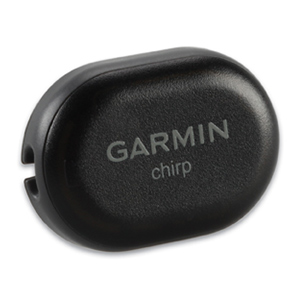
Garmin Chirp

Geocaching is a worldwide hide and seek treasure hunt game.  It allows people to hide a cache, which is nothing more than a box full of clever trinkets, and share the Latitude and Longitude of the cache on a website.  There are several websites out there that do this including GeoCaching.com and OpenCaching.com.  One of the must enjoyable types of caches are multi-caches that allow you to go from one point to another along a preset route.  Each cache then has the coordinates for another cache, but it can be challenging to get the coordinates entered into your device correctly.  If you have a high end Garmin GPS unit you can now do more.  The Garmin Chirp is a small wireless device that will communicate with other GPS devices.  Currently it only works with Garmin GPS units,  and one app on the Apple App Store: GeoBeacon  There are admittedly very limited and specific applications for this, but the reason I wanted to share this is because of the potential it might have.  Imagine that within the next year or two you could place these beacons around sites you wanted students to go to and to learn things.  You could create a field trip that they could get your specific tips and tricks for. There are several different ways two device can communicate like this and it could be that in the very near future the same technology that allows Android users to checkout at the grocery store with their Google Wallet by waving their phone at the cash register might allow mobile devices to act as a cache register.


Learn more by watching the following videos:

Tuesday, May 14, 2013

Trim Video

If you are like me there are times when YouTube just won't work.  Not because it's blocked but because I only need a few moments of a video and the navigation tools in YouTube are limited.  Here are some strategies I have learned that are helpful.

Screen Shot 2013-05-10 at 11.34.09 AM

First of all when a user clicks Share under a YouTube video they can now designate a start time.  This allows you to jump over some parts you may not want.  To show.  You can always keep the link handy by copying it and posting it to your my.uen page.

If you have your own Channel with videos that you own. You can also edit and modify them by going to the YouTube Editor
Screen Shot 2013-05-10 at 12.43.14 PM

This editor lets you mash together two or more of your videos and add audio for a quick and simple mashup.  You can also add pop ups and links to videos.

The final tool I was recently introduced to is Mozilla's Popcorn Maker.  This Tool allows you to choose videos from a variety of sources like YouTube, Vimeo and others and then add soundtracks and popups.  This is the same group that brought us FireFox so it works best in FireFox.

Tuesday, May 7, 2013

Make a QR code

QR codes or Quick Response codes are 2-D bar codes. These codes go beyond what regular bar codes can do. Regular bar codes use the varying black and white bars to communicate numbers and usually just that. But the 2-D QR codes allow more robust uses including:
  • Text
  • Hyoerlinks
  • Contact Information
  • YouTube videos
  • Direct access to certain apps ie: 4Square
These codes can be read by a variety of tools on a smart phone. Apps like Redlaser, and i-Nigma and even the Google Goggles feature of the Google search app will red these codes and the redirect them as needed. So what are teachers doing with these? Well UEN resident expert on QR codes Mindy Hintze has collected a variety of resources and examples all available at http://my.uen.org/myuen/70775/12
How are you using QR Codes? Leve your ideas in the comments!

Tuesday, April 30, 2013

Make Something

original apple computer
Computers have changed! The days of the giant beige cases with thumbscrews you could remove without tools are quickly coming to an end. Some will bemoan this and probably they are right to do so. The tinkerers and hackers and backyard engineers are the folks who first created the vibrant industry that has grown into our sleek modern computers. We can easily forget that the original Apple's weren't what we are used to seeing todayThese early amateurs set a culture where every individual maintained their own computers.  We (yup, I was among them) would actually crack open the cases and do upgrades, modifications and changes ourselves! But most of the new Laptops and All-in-Ones aren't suited to this.  The tinkering has gone from the hardware to the software and even that is usually not tinkered with.  This is not new, the same pattern existed when the Amateur radio became a consumer product.  No one bewails that they can't modify their TV.  So is all the tinkering gone away.  Not if you ask Kip Kedersha, who also goes by the handle KipKay, sure doesn't think so! If you are ever in the need of a project for yourself or you tech oriented students check out his page.  While you consider it check out this which my son built just the other day and it works like a charm!

Tuesday, April 23, 2013

Conventions

I try to keep these tech tips something relevant and hopefully cross platform and a tip! I think of these tips as little shortcuts or processes that can simplify what we do as tech enhanced educators. Often, we can spend a lot of time managing the technology and that can interfere with the big focus of all this which is the teach! Often we Ereader teaching things that aren't tech they are some other content. So he are two tips to managing information that I have found helpful:

Conventions, or Standards are rules that we use in grammar and writing to help cue people as to what we are doing. For instance if I put an ! At the end of a sentence you know I really mean it! Conventions that I use with student projects include the following naming of files:

#lastname,firstname????.ext

The students replaced the number sign (hashtag) with their class period and the question marks refer to their own name or information in the file name. By doing this, when students submit their assignment in a shared network drive or save it to a shared folder on DropBox, Google Drive or Skydrive, I can sort the whole list and I have them separated by class, and alphabetically by last name. This saves hours of searching and hunting for files and matching things up. Especially when your school grading system doesn't connect to your online/digital submission tool.

I use the following date format at the beginnnng of all my documents

2103-04-23

I then include whatever relevant file information I want. I learned this when Picasa started prepending this to my photos as they were I imported. While getting my science bachelor's I had gotten used to the standard scientific format for dates: 2013-apr-23 or 2013-IV-23 which is standard globally, but doesn't sort well on a computer, namely January is sorted after April by the computer who is using alphabetical sorting. By using the format above you get perfect chronological sorting. The 'last modified' or 'created on' data associated can be inaccurate when you move files from one external hard drive to another. So I have begun adding the date I created it at the beginning of all my documents to allow me to sort them.

What are some of your strategies for arranging and sorting files in our new age with massive numbers of files to manage? Post them in the comments!

Tuesday, April 16, 2013

Blogsy

blogsy icon
  1. Rich text editing!
    • One of the very best rich text editors on the iPad.  It allows bold, underline, italics, strikethrough, Bullet lists, paragraph alignment, and a variety of other editing tools.
  2. Multimedia:
    • Allows quick drag and drop adding of photos from a variety of sources, (see below)
  3. Multiple Account Access:
    • You can link multiple different blogging and multimedia accounts to add content to your posts.  You can also post to multiple blogging services quickly.
  4. Drafts!
    • Because it will also allow you to access the camera and video rolls you can work up your whole blog post while offline.  Then when you get back online you can post away!
So at a price of $4.99 it is a pretty good deal if you are blogging to multiple accounts.  It allows some pretty useful tools for editing and all in all is probably the very best of the blogging apps.  My only issue with it is that it doesn't allow editing of previous posts on the blogs you activiate.  For example, I can keep the draft, but I can't go to a past blog post and add new information.


Blogsy App image


Thursday, April 11, 2013

iPad web publishing!

I have been looking at tools for web publishing from the iPad and other tablets. These new devices are amazing to take every where and they are pretty useful as creative devices. Especially those with built in cameras or good sized virtual keyboards (typically the 10" tablets)
I found one too that is highly reviewed iPad app. Blogsy
This tool lets you drag and drop from multiple accounts for multimedia? Like photos from Picasa
Or videos from YouTube
All in all this makes blogging from the iPad pretty simple and powerful!

Tuesday, March 12, 2013

Remember Everything

There are a variety of tools, techniques, resources and information available for taking notes.  There isn't just an App for that there are literally hundreds.  This time we are going to talk about just 4! All of them part of a single service.


Evernote  is the service.  It  lets you take notes and keep track of lists, documents, all kinds of stuff on virtually any device you own.  There are apps for the desktop, iOS devices, Android and clippers, plugins, and add-ons for most browsers.
Skitch Logo
Skitch for Annotations! Skitch lets you take photos and annotate them.  These can be anything from screen grabs on an iPhone to massive images on your desktop.  Skitch basically lays a transparent layer over your photo and allows text, arrows, shapes and squiggles on top of your image.  These annotated images are uploaded into your Evernote account and available in Skitch on all your devices.

Penultimate logo

Penultimate is a handwriting app.  It lets you make simple and complex notes and keeps them all...yup, you guessed it.  Right in your EverNote Notebooks.

The last item sort of speaks for itself. It's Contacts management tool.


Three tools and 1 Service that let you remember it all.

Tuesday, February 26, 2013

Tech Tip Tueday: Text your students

Here are three quick ways to blast text messages to students:
  1. Sign up for a Google Voice account.  http://www.google.com/voice You can then use this account to send texts.  Google will give you a number online that will forward to your cell or you can manage it entirely online.  Students don't see  your cell phone number they see the Google Number. This one is great but could be a little harder to manage with large numbers of students.
  2. Remind101 http://www.remind101.com A service that allows students to text a number to sign up for text alerts. Students never see the the teachers personal cell phone number but they can receive alerts about upcoming events.
  3. Cel.ly http://cel.ly A service for SMS.  There is also an Android app.  The tools can also be managed via their website.  Students and parents can receive updates about what a teacher is doing in the classroom again all without the students getting the teachers personal number.
As with all things be sure to consider and abide by local policies and procedures regarding student:teacher interactions.

Tuesday, February 19, 2013

Tech Tip Tuesday: Get more Plexibility with your content

Wouldn't it be nice to access all your music, movies, videos and everything else an any screen you own?  We are getting closer to that becoming a reality.  Plex is a service that allow you to store media on any Mac or Windows machine and then serve it up on other screens.  Like iTunes or Windows Media Player Plex media server organizes your media.  Apps for your iOS, Android and Windows Phone 7 devices allows  you to access your content.  Using connected devices like Roku or Google TV will allow you to broadcast to your TV.

Tuesday, December 18, 2012

Tech Tip Tuesday: Where in the world are you?

The Global Positioning Satellite system has become almost as ubiquitous as electricity for many of us.  We are so used to being able to use our phones to find everything from driving directions to a local pastry shop.  But with the growth of this system and it's usefulness it has had one shortcoming on the iOS platform.  You can only get a GPS reciever by purchasing the more expensive 3g/4g iPads or an iPhone.  What about an iPod?  No luck, until Now!  Well actually 2010 but I just found out about them.  It is a dock connecting GPS receiver.  It works for any of the iOS devices. Now, you might say to your self, "Self, Why would I buy this the increased price is the same as buying a dedicated GPS or the same as the extra cost to get GPS included in an iPad?" Well, I would say to yourself.  It comes down to one word. Transferencability. 1 of these devices and a classroom set of iPods could allow multiple students to enable GPS and location features when needed.  This means the iPod touch can take Geo-Tagged photos and then the student can hand off the receiver to another student and continue working on editing photos or creating a slideshow.  Even better in my mind is the GPS Pro.  It is a GPS receiver and autologger (meaning it can keep track of tracks, stops and locations) Better still it uses BlueTooth to transfer the information to iOS devices.  So this will allow 1 receiver and up to 5 Devices to connect.  I think this would be great on a Geocaching road trip. Another benefit of both these equipment add ons is that there are a multitude of Mapping/Location apps.  The limitation of a dedicated GPS receiver is that often they are like a paring knife.  Extremely useful but in only a very narrow use.  A swiss army knife can do lot's of things pretty well.  This is the iOS approach.  With the variety of Apps it is possible to do Geocaching, Turn by Turn navigation, and find coffee shops, and then take a run and keep track of where you went all on the same device. Of course, there is the option I would prefer to see.  The one the Android Market has taken.  Incorporate GPS receivers into the WiFi devices.  I have had two Android Tablets and there are a handful of handheld devices that all have GPS built right in.  So take a look at where in the world you are.  Let us know in the comments if you have tried out this device and what you use location services for on your mobile device.

Welcome to Jorgie Learning

I really am learning and this blog is maintained both as a record of some of what I am doing as well as a place for me to train and teach others about creating an online presence. So please don't mind the dust. We aren't remodeling we are learning!

Visit some of my other blogs or the other blogs I find mildly entertaining for a more polished feel.

ShareThis